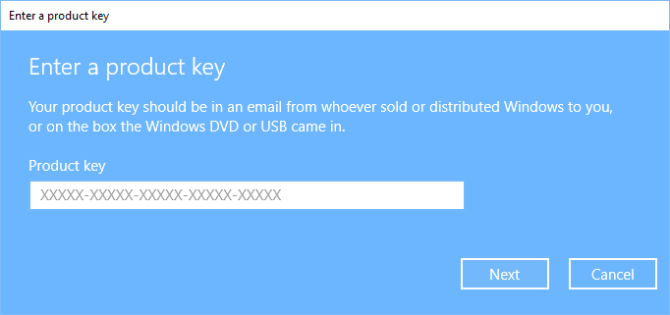
There has been no need for product keys, for most users, particularly the ones using Microsoft Windows 10, as there has been no "new" version of Windows. But with the release of Windows 11 coming up, the users of Windows 10 might need the product key after all.
You will have the product key located on your computer hardware itself, typically at a spot where it is most inaccessible. But there are other ways you can get this 25-digit alphanumeric code than crawling behind your desk and looking for it.
Here, in this article, we will see how you could find your Windows 10 product key using your operating system.
Finding your Windows 10 product key
It has to be noted first that, the success rate of these methods depends largely on how your PC was activated. You will be able to find the product key with most of these methods if you activated Windows 10 by upgrading from a valid Windows 7 or 8 installation or with the computer's recent purchase, but, finding the product key would be more problematic if your PC was activated as part of an organization's licensing agreement.
1. Command prompt
You can find your Windows 10 product key through the command line, which is the most direct method for it. On the desktop search box, type "cmd" and then right-click the result on the command line and select "run as administrator" from the context menu. At the prompt, type this command:
wmic path softwareLicensingService get OA3xOriginalProductKey
This command will display your Windows 10 product key.
Figure A

2. PowerShell
The process is quite similar if you are using Windows 10 PowerShell. Just right-click the Start Menu button and then from the context menu, select Windows PowerShell (Admin). As shown in Figure B, you can type this command at the prompt to reveal the product key:
powershell "(Get-WmiObject -query 'select * from SoftwareLicensingService').OA3xOriginalProductKey"
Figure B

3. Registry File
The product key is stored in the Windows 10 Registry File, as can be understood, so if you know the right key it is possible to find the code there. In the Windows 10 desktop search type "regedit" and select the appropriate item from the results. Then navigate to this key:
Computer\HKEY_LOCAL_MACHINE\SOFTWARE\Microsoft\Windows NT\CurrentVersion\SoftwareProtectionPlatform
The BackupProductKeyDefault key will show your Windows 10 product key, as in Figure C.
Figure C

You can also locate and display your Windows 10 product key using third-party applications but they would basically be doing the same thing that we did here, without the involvement of someone else's programming and potential security issues.