

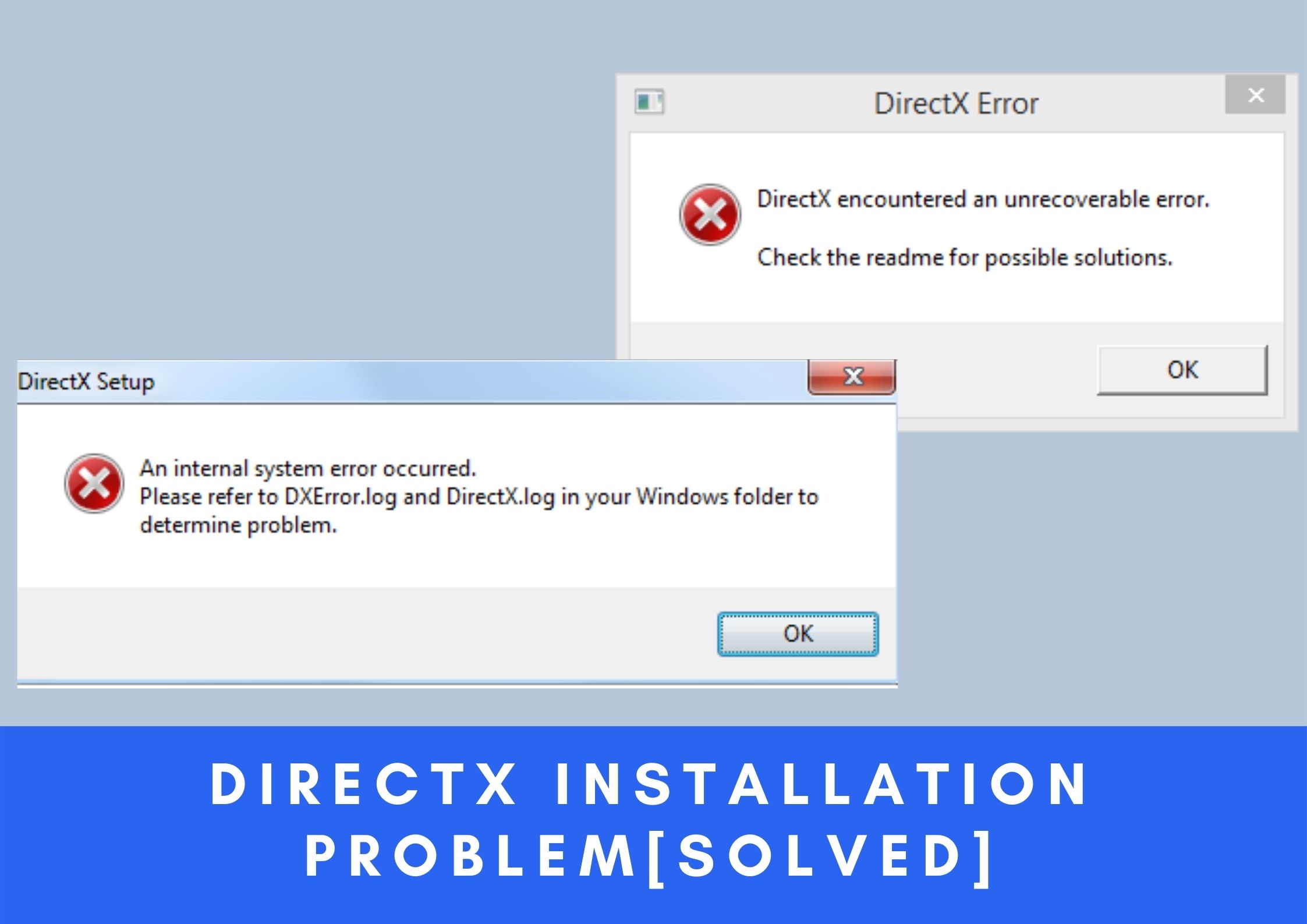
While trying to install any application or games, if you are receiving the "Can't install DirectX in Windows 10" then this is just the right article for you.
Here in this article, we will talk about the DirectX installation problem and the different ways in which you can fix it.
DirectX
A set of programs and procedures that are important for the functioning of Windows 10 devices, be it the handling of multimedia videos or something else, is called DirectX.
DirectX is an integral part of your Windows 10 PC, especially if you are a gamer or an enthusiastic 3D or video designer.
CAUSES: DirectX Installation Problem
Pointing out the exact cause of the DirectX installation problem is a little difficult as there are a number of different cases when the error is received by the users. These are some of the possible causes of the DirectX installation problem.
- Reinstalling DirectX on Windows 10.
- Installing the latest Windows 10 update.
- Some internet connection issues.
These are some of the main causes of the DirectX installation problem.
Also, you need to remember to not install the older DirectX version manually as this can screw up your Windows installation.
FIXES: DirectX Installation Problem
You can follow the fixes given below to solve the DirectX installation problem.
Table of Contents
- Download Visual C++ Redistributables
- Check the System Requirements
- Reinstall Graphics Card Drivers
- Install DirectX Previous Version
- Reinstall the Previous Updates
- Install .NET Framework
- Download the Missing DLL Files
1. Download Visual C++ Redistributables
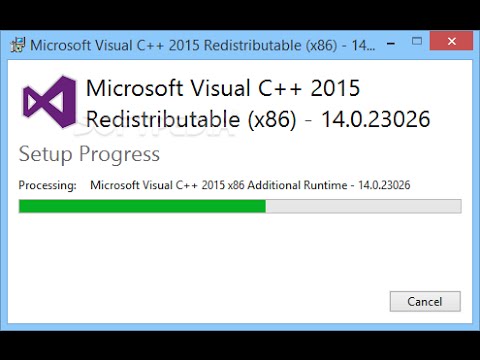
When you start receiving the Can’t Install DirectX Windows 10 error, it could be that the Visual C++ Redistributable for Visual Studio 2015 is corrupted or missing.
It is suggested here, that you download the software directly from the Official Microsoft website. This is how you can do it.
-
First, move to the Microsoft Download website.
-
Press Download.
-
After this, choose the system type x64 or x86(x32) and click Next
-
As the file is getting downloaded, double click on the exe. file.
-
Complete the installation by following the instructions of the screen.
Then just check if the Can’t Install DirectX Windows 10 error is resolved or not.
2. Check the System Requirements
You need to first make sure that you have the required system configuration.
All the requirements given below should be satisfied for installing DirectX properly.
- CPU – 2 GHz Duo Core CPU
- .NET Framework 4
- Graphics Card – DirectX 12 compatible
- OS – Windows 7 32 bit or 64 bit
- RAM – Minimum 1 GB RAM
3. Reinstall Graphics Card Drivers
The graphics card driver of your system should be compatible with DirectX for it to run, so you need to reinstall the graphics card drivers to solve the DirectX installation problem.
This is how you can do this:
- Press Windows Key + X, then Device Manager.
- Go to the Display Adapters section on the Device Manager and find out your graphic card driver.
- Then, right-click the driver and select Uninstall.

- Now, mark the Remove the driver software for this device and click OK.
- Restart your system after uninstalling the driver.
- Move to your graphic card manufacturer’s website as the computer restarts and download the latest graphic card drivers.
- Then, install the drivers that you have downloaded.
Then, check if the DirectX installation problem still remains.
4. Install DirectX Previous Version
An older version of DirectX is required by some applications to run properly. Also, on some occasions, you need to install the DirectX program by yourself.
You can download the installer safely from the official website of Microsoft; then install and restart the system. Then you will see that some of the DirectX errors are fixed as the computer restarts.
5. Reinstall the Previous Updates
It has been confirmed by some of the users that they are facing the DirectX installation problem after updating Windows. So you could try uninstalling and reinstalling the Windows update to fix the DirectX installation problem.
- Move to the Windows Start button, then click on the Settings icon to open the Windows Settings.
- Click on the Update & Security on the App Settings window.
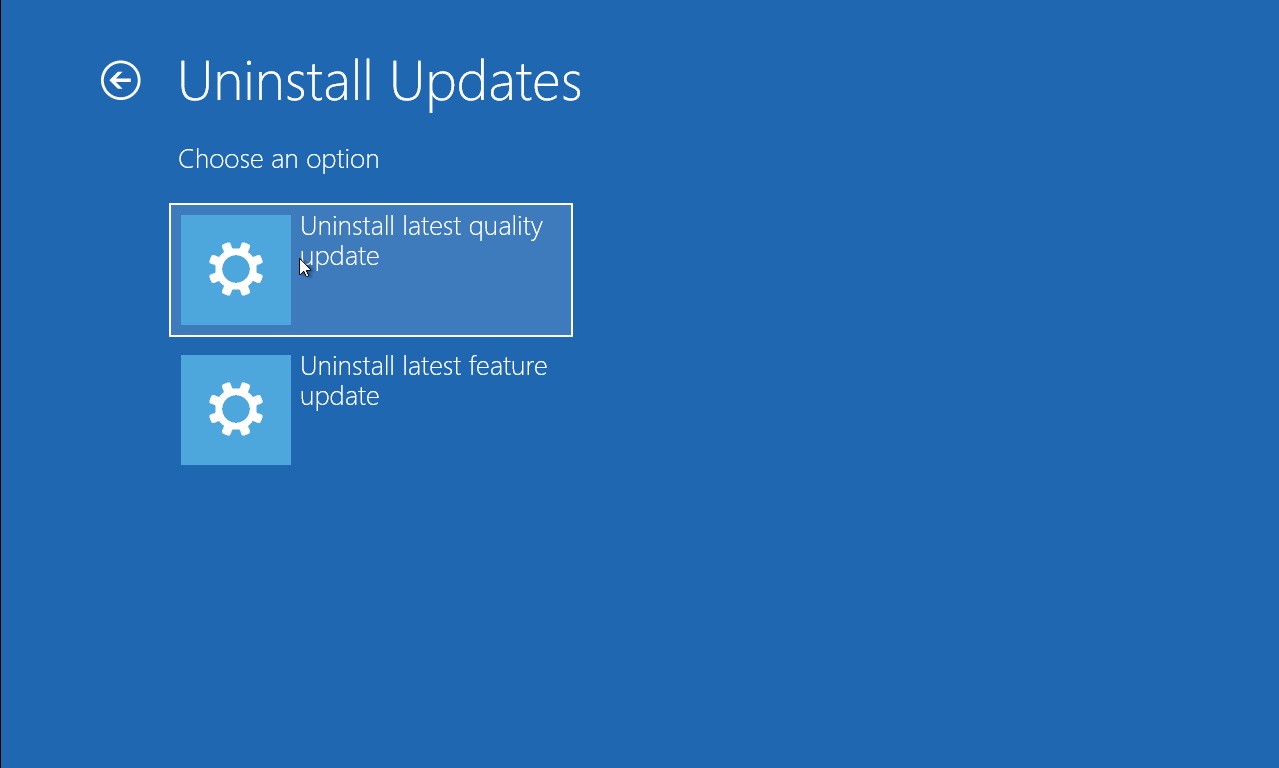
- Move to the Windows Update and click on the View Installed Update History.
- Click on Uninstall Updates.
- Now, look for the recently installed updates.
- Then just right-click on the last update and select Uninstall.
Now, check if the DirectX installation problem is fixed.
6. Install .NET Framework
You can also try to install the .NET Framework on Windows 10 and see if the DirectX installing problem is solved.
- Move to Search, then type cmd and open Command Prompt as Administrator.
- Then, type the given command and press Enter:
DISM /Online /Enable-Feature /FeatureName:NetFx3 /All /LimitAccess /Source:D:sourcessxs
- Wait for the process to end.
- Restart your PC.
Only a part of the tool will allow you to install .NET Framework.
7. Download the Missing DLL Files
You have to make sure that this is performed very carefully as it can have major consequences if not performed well.
It has been reported by some of the users that you can fix the DirectX installation problem by downloading and moving the DLL files to WindowsSystem32 (32-bit versions of Windows 10) or to WindowsSysWOW64 (64-bit versions of Windows 10) folder.

You have to make sure that you download the missing DLL files from the official website or you can also copy the missing file from another computer, but you have to ensure that the other system is running the same OS as yours.
This will solve the DirectX installation problem on your Windows 10 computer.
The PC Repair Tool ( BEST & SIMPLE)
As we have mentioned in our other articles, you can use the PC Repair tool in case of most errors as it helps you fix BSOD, DLL and other errors on Windows 10.
Conclusion:
So, this was all about the DirectX installation problem on Windows 10 computers.
You can post your questions in the comment section.
All the best!