

If you want to check OS version, Processor information, Serial number, etc. details about your MacBook, then this step-by-step guide will help you.
In Mac, it is super simple to get all this information. In about 2 clicks you can see all this information, which will tell you the Operating system (Mac OS) version that your laptop/computer is working, RAM of your CPU, the number of processors in CPU core, Graphic card details, and the Serial number of your device too.
Step 1: Click on the Apple icon
On the top left corner, there is an apple icon, click on it :)
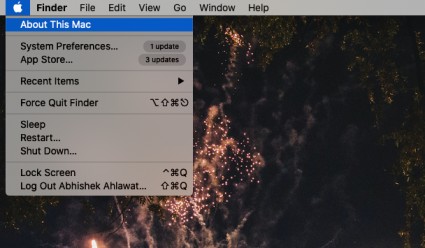
Step 2: Click on the About this Mac option
A new window will open which is a System Preference menu window and it will have all the details regarding your Macbook.
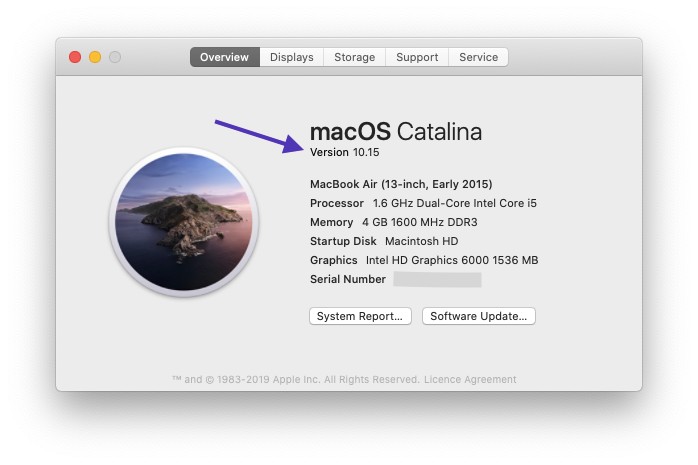
As you can see in the above screenshot, details about Processor, Memory, Startup Disk, Graphics card, and the Serial Number are displayed here along with the current version of macOS.
If you want to check the Disk usage for MacBook, click on the Storage tab.
As you can see there is a Software Update button too, if you click on it, another window will open which will show if any Updates are pending for installation.
Conclusion:
Now you know how to check all the information about your MacBook. If you tend to forget things easily, you can bookmark our page.