

![vcruntime140 dll was not found error [SOLVED]](https://s3.studytonight.com/curious/uploads/pictures/1643699808-79542.jpg)
If you are getting the message "The program cannot start because VCRUNTIME140.DLL is missing from your computer" then this is just the right article for you.
You will face this error message when the VCRUNTIME140.DLL file gets misplaced or deleted from the Windows system.
Here, in this article, we will talk about the causes of the VCRUNTIME140.dll error and the different ways in which you can fix it.
CAUSES: VCRUNTIME140.dll error
You might get this message after an improper installation of any program or after installing a Windows update.
- Improper installation of Kodi damages the DLL file.
- It could be because of the Adobe Creative Cloud’s migration.
- Due to corrupted system files.
- Due to malware or virus infection.
FIXES: VCRUNTIME140.dll error
Sometimes you might be lucky and the VCRUNTIME140.dll error can be fixed just by reinstalling the culprit program. But, if this doesn't work for you, then you can follow the fixes given below.
Table of Contents
- Reinstall Visual C++ Redistributable for Visual Studio 2015
- Run the System File Checker
- Try To Repair Microsoft Visual C++ 2015 Redistributable
- Re-register VCRUNTIME140.dll file
- Manually Install the VCRUNTIME140.dll Missing File
- Re-install the Recently Installed Application
1. Reinstall Visual C++ Redistributable for Visual Studio 2015
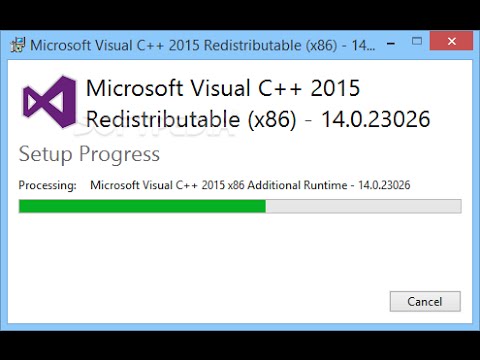
You can fix the missing VCRUNTIME140.dll error by reinstalling the Visual C++ Redistributable for Visual Studio 2015.
It is suggested here, that you download the software directly from the Official Microsoft website. This is how you can do it.
-
First, move to the Microsoft Download website.
-
Press Download.
-
After this, choose the system type x64 or x86(x32) and click Next
-
As the file is getting downloaded, double click on the exe. file.
-
Complete the installation by following the instructions of the screen.
2. Run the System File Checker
The System File Checker tool is our next option. A wide variety of Windows ailments can be solved by repairing corrupted or incorrectly modified system files using this tool.
It is a critical troubleshooting step in case of the VCRUNTIME140.dll error.
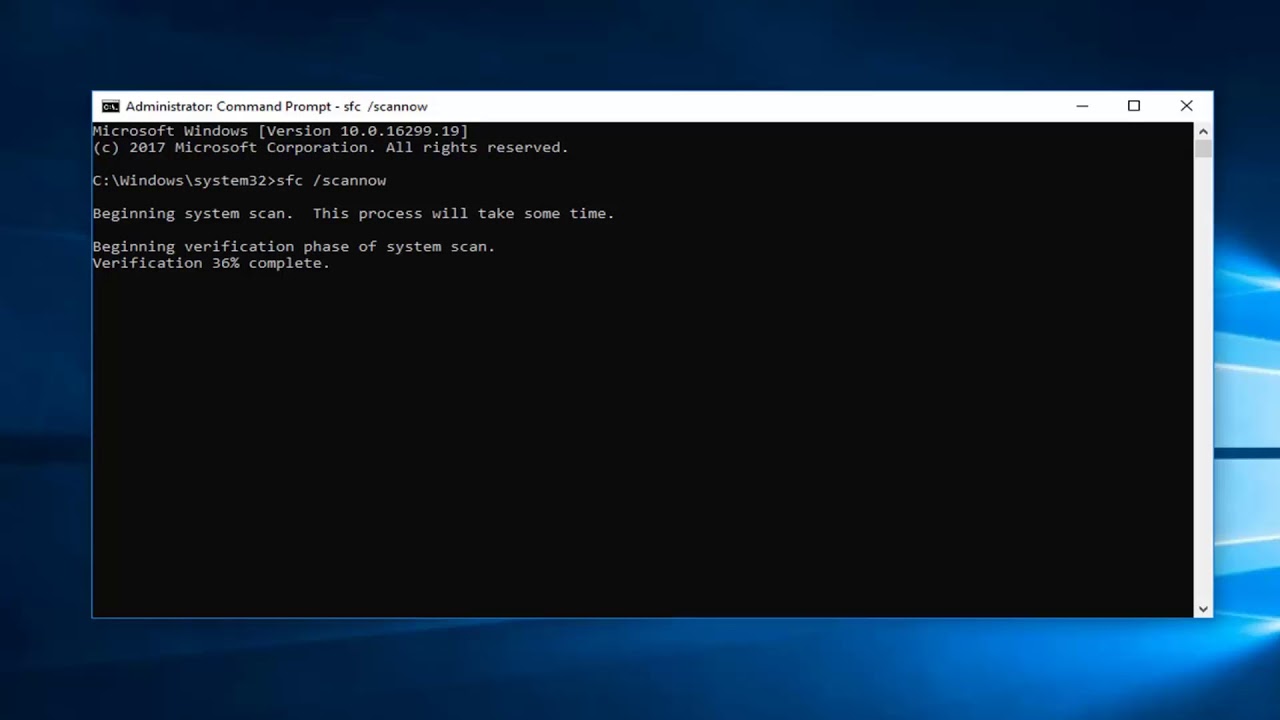
You will need to open the Command Prompt as an admin to run the checker. You can just run a search for cmd, then right-click on the result, and select Run as administrator.
Type sfc/scannow after opening the Command Prompt and then press the Enter key.
You will see an on-screen list of any problems after the scan is finished and the steps that the scan tool to remedy them would also be mentioned.
Then, you should ensure that you restart your computer before continuing the work.
3. Try To Repair Microsoft Visual C++ 2015 Redistributable
Try to repair the Visual C++ Redistributable for Visual Studio 2015 on your computer, if you have already installed it.
You can do this by following these steps:
- Click on Start and move to the Control Panel
- Then, click Program and Features under the small icons pane in the Control Panel
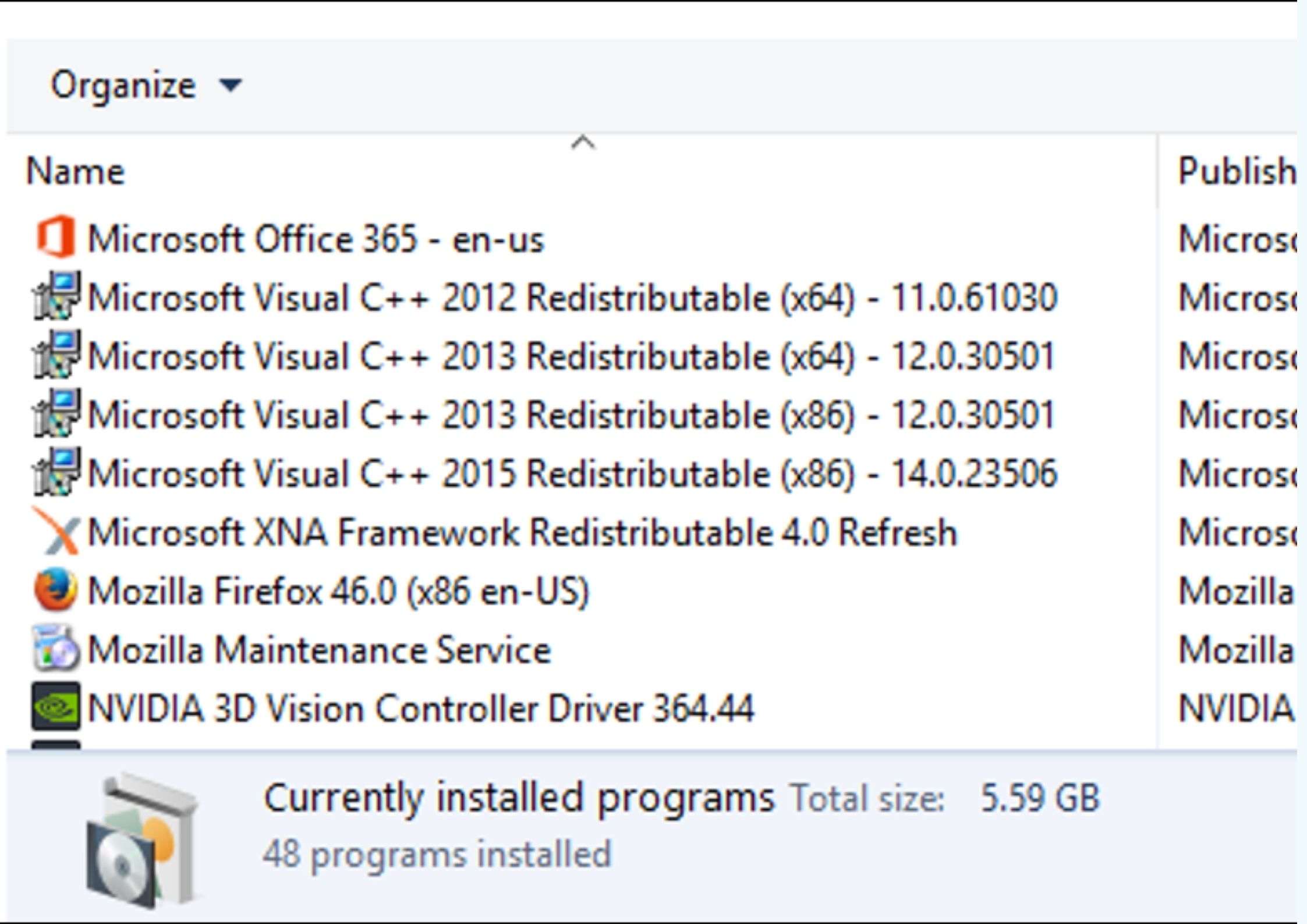
- Click on the Microsoft Visual C++ 2015 Redistributable and then Change.
- Then, click on Repair.
- When displayed by User Account Control, click on Yes and continue to follow the instructions appearing on the screen to complete the repair process.
This will solve the VCRUNTIME140.dll error.
4. Re-register VCRUNTIME140.dll file
The VCRUNTIME140.dll error can be fixed easily by the Regsvr32 command in Command Prompt.
You just have to do the following:
- Open Command Prompt by typing cmd in the search box.
- Then, right-click on the results of the search and select Run as Administrator
- Then, just type in the following and hit the Enter key to unregister the file:
regsvr32 /u VCRUNTIME140.dll
- Then, to register, type the following and press the Enter key
regsvr32 VCRUNTIME140.dll
5. Manually Install the VCRUNTIME140.dll Missing File
Try to manually download and replace the VCRUNTIME140.dll missing file if the other solutions are not working for you.
But you have to be very careful while downloading the DLL files manually as they might come bundled with viruses. Hence you should always download the VCRUNTIME140.dll file from the official website of the manufacturer or from the Microsoft official website.
Select the 32 or 64- bit version according to your system and after the file is downloaded replace it with the VCRUNTIME140.dll file manually.
6. Re-install the Recently Installed Application
If none of the above-given solutions works for you here it is suggested to uninstall and reinstall the application.

Follow the steps to do so:
- To open Settings press the Windows + I key and click on Apps.
- Then, locate the application you installed recently and click on it to get the list of options.
- Then, choose Uninstall and follow the onscreen instructions.
- Then, download the application again and install it from the official website.
You will be able to run it without any error after the reinstallation process is completed.
The PC Repair Tool ( BEST & SIMPLE)
As we have mentioned in our other articles, you can use the PC Repair tool in case of most errors as it helps you fix BSOD, DLL and other errors on Windows 10.
Conclusion
So, that was all about the VCRUNTIME140.dll error; which you can easily fix using the methods stated above.
Let us know your experience with the VCRUNTIME140.dll error in the comments section.
All the best!