![Windows error code 43 [SOLVED]](https://s3.studytonight.com/curious/uploads/pictures/1642408968-79542.jpg)
If you are being troubled by Error Code 43 then this is just the article for you.
It is when the hardware or software on your device isn't working well, that is when you get the Error Code 43.
There are three different forms of this error:
- USB Error Code 43
- NVIDIA Error Code 43
- Bluetooth not working Windows 10 error code 43
CAUSES: Error Code 43
There are a few common causes that might result in Error Code 43.
- If the communication between the driver and the device is lost.
- Corrupted or damaged driver.
- Missing driver.
- Outdated device driver.
- Some other issues with hardware and software.
It is a very basic error and can be dealt with easily by following the given steps:
FIXES: Error Code 43
Table of Contents
- Reinstall Device Driver
- Restart the Computer
- Uninstall Lucid VIRTU MVP
- Roll Back Device Driver
- Make Sure the Graphics Card is Inserted Properly
- Update Device Driver
- Diagnose Device Manager
- Update BIOS
- Restore the System
1. Reinstall Device Driver
You can try to uninstall and reinstall the driver to fix the Windows 10 Error Code 43.
This is how you can do it:
- In the Windows Search Cortana type Device Manager
- From the search result click on the Device Manager

- Click on the device category in the Device Manager window.
- Click on the Uninstall option as you right-click on your device name.
- To confirm the uninstallation of the driver, now a window will be prompted.
- Click on the OK button.
- Restart your computer.
- After opening the Device Manager, right-click on the device category.
- Then, click on the Scan for hardware changes.
- Now the system will be scanned and the driver will be reinstalled.
- Then, just right-click on the name of the device and select Properties.
- Then, you should see, "This device is working properly” under the Device status.
2. Restart the Computer
Sometimes, a reason for getting the Error Code 43 could be that the device didn't load properly on the computer. So once you see that this is the temporary driver issue, it is worth restarting your computer.
After you have restarted your computer check if the Error Code 43 still remains.
3. Uninstall Lucid VIRTU MVP
If you are experiencing Error Code 43 on your Windows computer and the Lucid Virtu MVP is installed on your system, then you may have to uninstall this software from your computer as it is no more compatible with NVIDIA after the latest Windows update.
Here is how you can uninstall Lucid Virtu MVP from your device:
- Open the Run dialogue box by pressing the Windows + R key.
- Type appwiz.cpl in the Run text field and click on the OK button or press the Enter key.
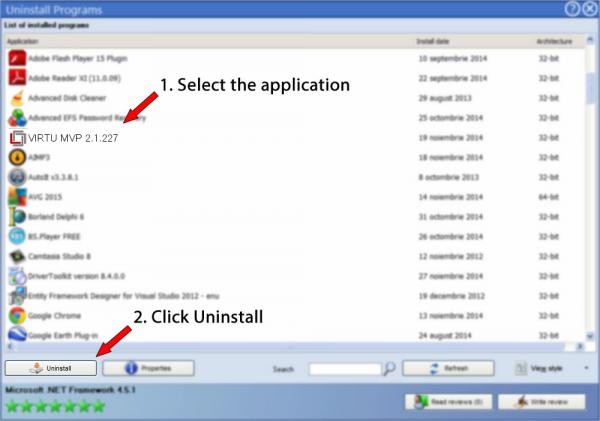
- Now, from the list of installed applications, search for the Lucid VIRTU MVP and right-click on it.
- Click on the Uninstall option.
- After uninstalling the software, restart your computer.
4. Roll Back Device Driver
You can always roll back the device driver to fix the Error Code 43 on your Windows. This is how you can do it:
- First, press Windows + X key together and select Device Manager from the list.
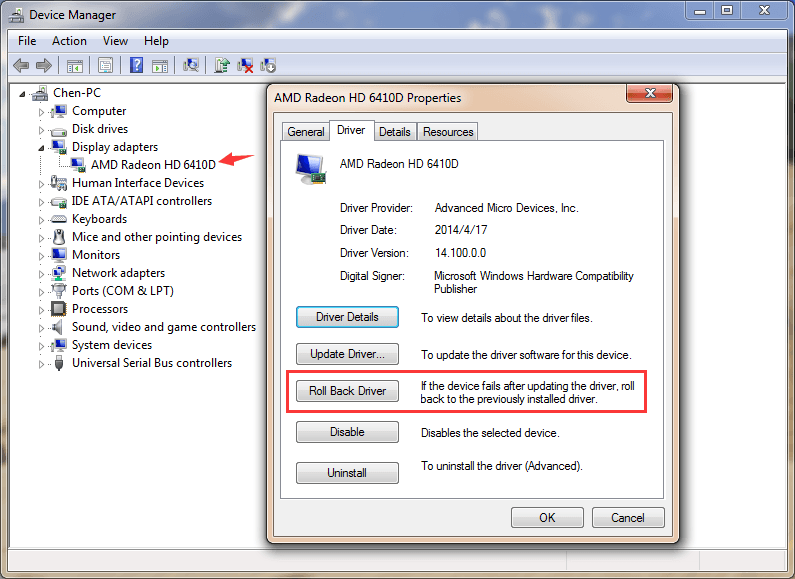
- Then, click on the device category and right-click on the device name.
- From the context menu click on the Properties
- Click on the Roll Back Driver button on the Driver tab.
5. Update Device Driver
Another cause for the Windows 10 error code 43 could be an outdated device driver. You can update the device drivers in this way:
Update driver in Device Manager
1. Win + X and choose Device Manager.
2. Hover over to “other devices” and right-click to update the driver;
3. Then just search for updated driver software and wait for the result.
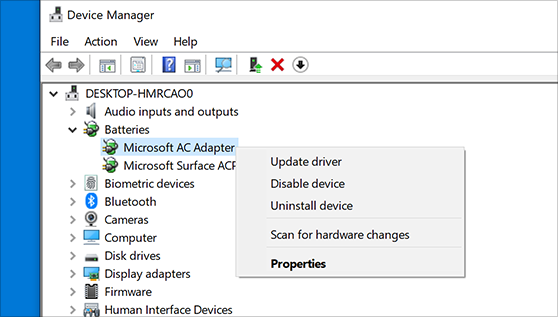
Make sure that the driver is compatible with your system.
Update the driver with a driver updater
A driver updater is very important to help update the outdated drivers automatically as it is miserable for most users to update the drivers on their own. One such tool that supports updating device drivers and fixes common driver issues is Driver Booster.
You can update the driver in just two steps using Driver Booster.
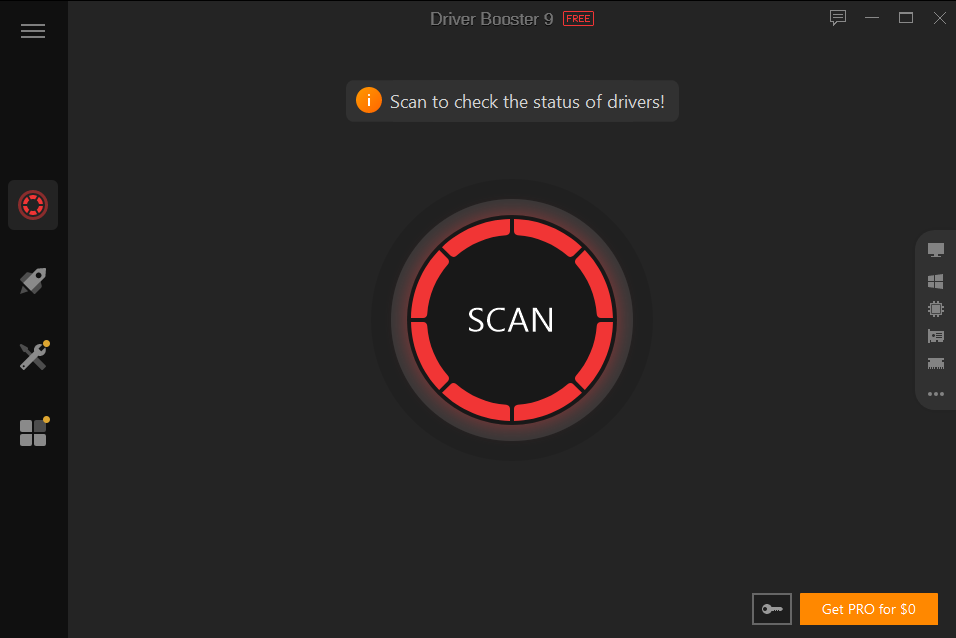
- Just run Driver Booster and wait for the scanning result;
- In just one click, update all the outdated drivers.
After this, check if the Windows 10 error code 43 is resolved.
6. Diagnose Device Manager
The Device Manager is associated with Error Code 43 on your Windows, so it would be a great move to overcome this issue. To apply this solution, check out the following steps:
- Type Device Manager on the Windows Search box
- Click on the Device Manager.
- Identify the malfunctioning device from the list of installed devices
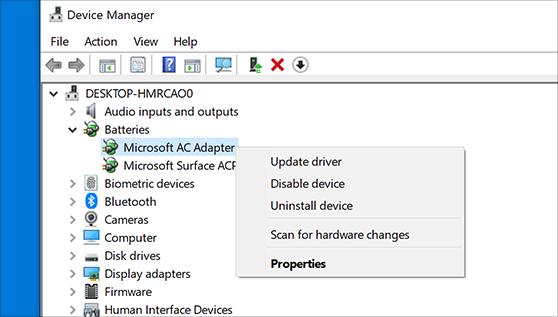
- Right-click on it and select the Uninstall option.
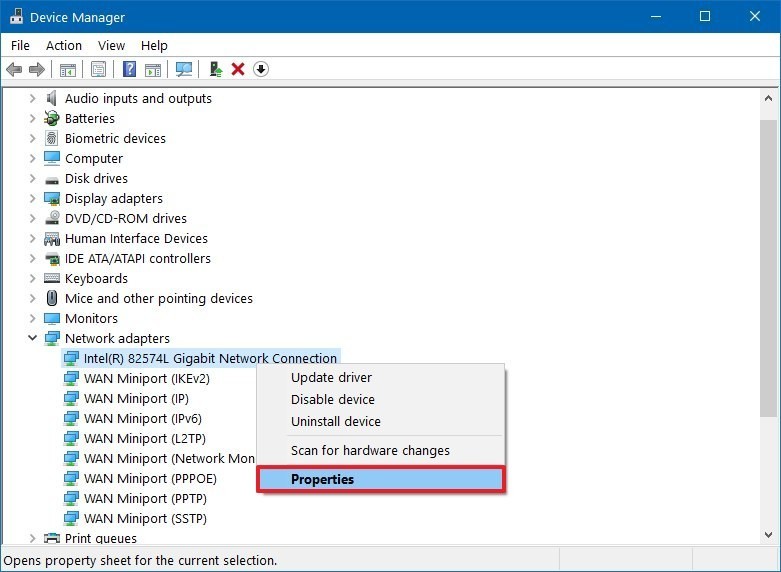
- To uninstall the malfunctioning device click on the Ok button
- Now, click on the Computer in the Device Manager window and then right-click on the name of your computer.
- Then, click on the Scan for hardware changes.
- Click on the Properties after you Right-click on the device for which you are getting the error code
- The General tab would then show this message: The device is working.
7. Update BIOS
The cause for the Windows has stopped this device error code 43 could be an outdated BIOS, so you should make sure that the BIOS on your computer is updated.
Updating the BIOS does not have a standardized method so you can refer to your computer manufacturer's guide for reference.
8. Restore the System
The final manual option to resolve the Windows has stopped this device error code 43 is to restore your Windows and this is how you can do it:
- Press Windows key + S first and then enter system restore and simply select Create a system restore point from the menu.
- Then, click the button ‘System Restore’.
- The System Restore window will now appear. Here, click next to proceed to the further step.
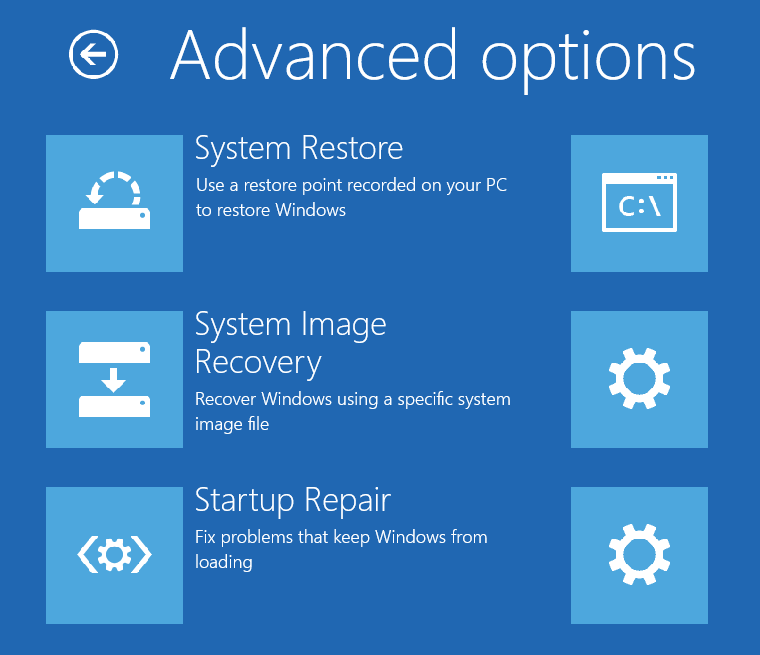
- Then, choose the desired restore point and then click Next to move further.
- Now, to make the restoration process complete, follow the instructions you get on the computer.
After this, check if the Windows has stopped this device error code 43 is resolved.
The PC Repair Tool ( BEST & SIMPLE)
As we have mentioned in our other articles, you can use the PC Repair tool in case of most errors as it helps you fix BSOD, DLL and other errors on Windows 10.
Conclusion
So this is all you have to know about the Windows has stopped this device error code 43.
We are sure that the error would be fixed if you follow the above methods.
All the best!