Connecting to Access Database using JDBC Type-1 Driver
To connect a Java application with Access database using JDBC-ODBC Bridge(type-1) Driver. You need to follow the following steps.
Note: In Java 8, the JDBC-ODBC Bridge has been removed. It is no longer supported.
Create DSN Name
-
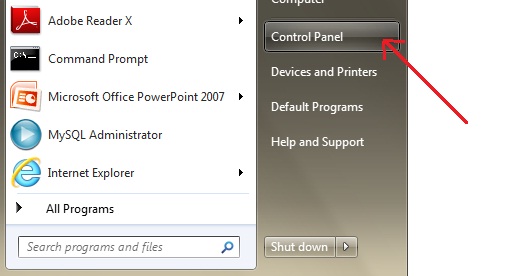
Go to control panel
-
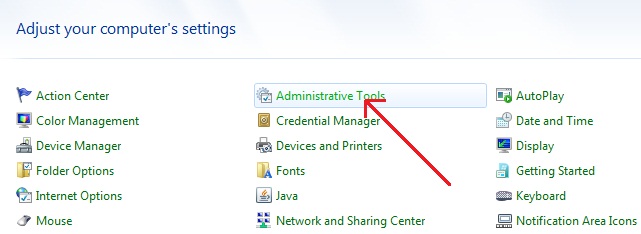
Go to Administrative tools
-
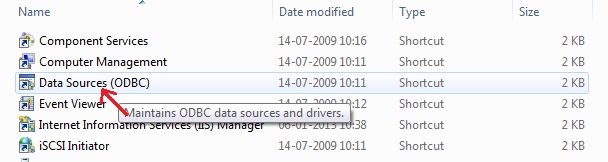
Select Data Source(ODBC)
-
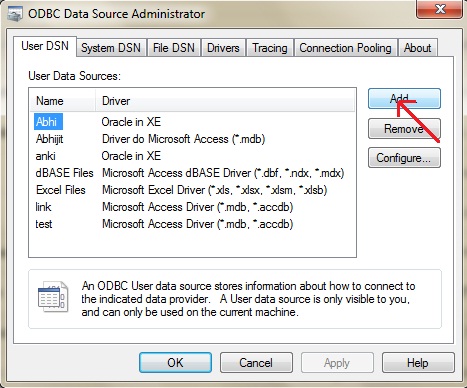
Add new DSN name, select add
-
Select Access driver from the list, click on finish
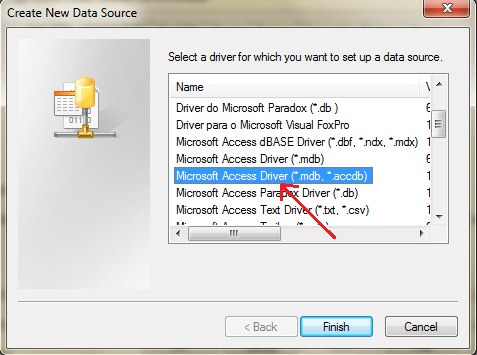
-
Give a DSN name, click ok
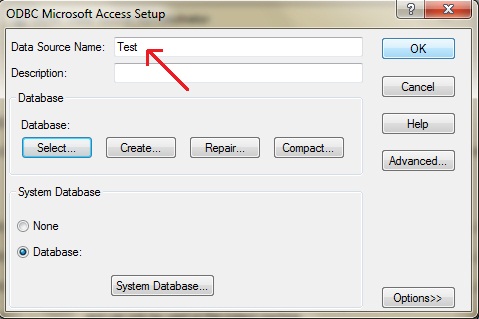
NOTE: Here we are showing this example to create DSN in Window 7 os. For other operating system you need to do small changes.
Time for an Example!
We suppose that you have created a student table with sid and name column name in access database.
import java.sql.*;
class Test
{
  public static void main(String []args)
  {
    try{
      Class.forName("sun.jdbc.odbc.JdbcOdbcDriver");
      Connection con = DriverManager.getConnection("jdbc:odbc:Test", "", "");
      Statement s=con.createStatement();        //creating statement

      ResultSet rs=s.executeQuery("select * from student");     //executing statement

      while(rs.next()){
         System.out.println(rs.getInt(1)+" "+rs.getString(2));
      }

      con.close();      //closing connection

    }
    catch(Exception e)
    {
       e.printStackTrace();
    }
  }
}
