Setup a Job in Jenkins Server
The build for any project in Jenkins is handled by JOBs. Hence, a job always needs to be created in order to build a project. This can be easily done as shown below :
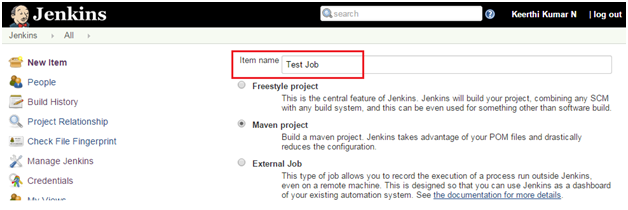
Click on the New Item from the Jenkins home page and just enter the item name of a project and select Maven project and click on OK.
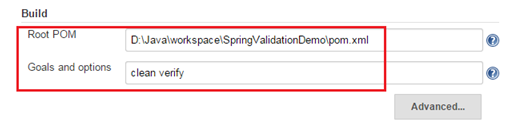
In the next page, under the Build, just point to the pom.xml of the maven project and specify clean verify under the Goals and options. Then apply and save the page.
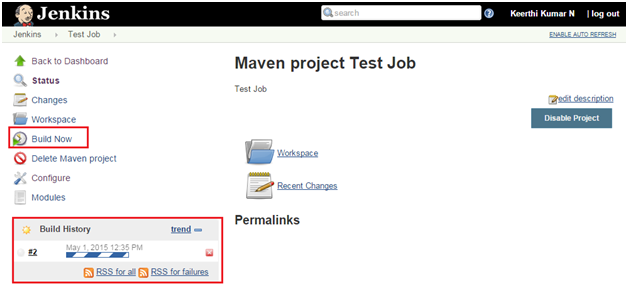
In the next page, a job is created. Just click on the Build Now link and can see that a new build will be triggered as shown below,